本記事では、Tailwind CSSのインストール方法を説明する。
インストールするバージョンは、Tailwind CSS v3.4.3 (2024/04/28時点で最新)
Tailwind CSSとは?
Tailwind CSSはユーティリティ・ファーストなCSSフレームワークで、使用すると新たにCSSを書かずにデザインを実装できる。
HTMLファイル、JavaScriptコンポーネント、他テンプレートなどを走査し、作成したスタイルを静的CSSに書き込むことで動作を実現する。
メリット
- クラス名を考えなくても良い…細かな用途に応じたクラスがすでに定義されているので、スタイル適用の為のクラス名を考えなくて良い。
- CSSが肥大化しない…従来の必要なものを追加していく手法と異なり、ユーティリティ・ファースト思想により定義済みクラスを使用することになる。このため、CSSが肥大化することはほとんどない。
- 変更がより安全になる…グローバルなCSSを使用した場合、気づかないうちに何かを破壊しているかもしれない。それに対してHTML内のクラスはローカルであり、他の箇所を破壊する心配せずに変更が可能になる。
インストール環境
- Windows 11 Home 23H2
- Node.js v20.12.2
インストール方法
Tailwind CLIツールを使用する方法と、Reactのフレームワーク・Next.js内で使用する方法を紹介する。
Tailwind CLI
以下のような構成を前提とする。
src/
  index.html
  input.css
  output.css
tailwind.config.js
手順1. Tailwind CSSをインストール (v3.4.3)
npm経由でTailwind CSSをインストールし、設定を初期化する。
>npm install -D tailwindcss    // npm経由でインストール
>npx tailwindcss init    // 初期化(tailwind.config.jsが生成される)
手順2. 設定ファイルでテンプレートパスを指定
手順1で自動生成されるtailwind.config.jsで、テンプレートパスを指定する。ビルド時には、contentに設定したファイルを走査することになる。
// tailwind.config.js

/** @type {import('tailwindcss').Config} */
module.exports = {
  content: ["./src/**/*.{html,js}"],    // 走査対象を指定(この場合は、src配下のhtmlとjsファイル)
  theme: {
    extend: {},
  },
  plugins: [],
}
手順3. Tailwindディレクティブを追加
入力元になるスタイルシートにTailwindディレクティブを追加する。
// src/input.css

@tailwind base;
@tailwind components;
@tailwind utilities;
手順4. ビルド実行
Tailwind CLIを使用してビルドを実行する。
// 入力スタイルシート(src/input.css)とtailwind.config.jsの設定を元に
// 出力スタイルシート(output.cssを)生成する
// watchオプションを指定すると、以降、ファイル変更毎に再ビルドが自動実行される
>npx tailwindcss -i ./src/input.css -o ./src/output.css --watch
手順5. 動作確認
使用するHTMLで手順4で生成されたスタイルシートを参照すれば、Tailwind CSSのクラスが使用可能になる。
// src/index.html

<!doctype html>
<html>
<head>
  <meta charset="UTF-8">
  <meta name="viewport" content="width=device-width, initial-scale=1.0">
  <!-- output.cssを参照 -->
  <link href="./output.css" rel="stylesheet">
</head>
<body>
  <!-- Tailwind CSSのクラスを使用可能 -->
  <h1 class="text-3xl font-bold underline">
    Hello world!
  </h1>
</body>
</html>
※ビルドで何をしているのか?
- 入力スタイルシートとtailwind.config.jsの設定を元にファイルを走査し、使用しているクラス一覧を抽出、
- 以下の内容を出力スタイルシートに書き込む
- 要素別スタイルのデフォルト値
- Tailwind CSSの定義クラスはそれ対応するスタイル値
- ユーザ定義のクラスはそのままの値
上の例では、要素別スタイルのデフォルト値と、Tailwind CSSの定義クラスのうち使用しているもの(text-3xl font-bold underline)が出力スタイルシート書き込まれる。
// src/output.css

/*
! tailwindcss v3.4.3 | MIT License | https://tailwindcss.com
*/

/*
1. Prevent padding and border from affecting element width. (https://github.com/mozdevs/cssremedy/issues/4)
2. Allow adding a border to an element by just adding a border-width. (https://github.com/tailwindcss/tailwindcss/pull/116)
*/

/* 要素別スタイルのデフォルト値 */
*,
::before,
::after {
  box-sizing: border-box;
  /* 1 */
  border-width: 0;
  /* 2 */
  border-style: solid;
  /* 2 */
  border-color: #e5e7eb;
  /* 2 */
}
...
/* Tailwind CSSの定義クラス */
.text-3xl {
  font-size: 1.875rem;
  line-height: 2.25rem;
}

.font-bold {
  font-weight: 700;
}

.underline {
  text-decoration-line: underline;
}
Next.js
手順1. Next.jsプロジェクトを作成
create-next-appを実行し、Next.jsプロジェクトを作成する。途中の問いでは、Tailwind CSSを使用するかに対してのみYes、その以外は要件や環境に合わせて回答する。
>npx create-next-app@latest <プロジェクト名> --typescript --eslint
? Would you like to use Tailwind CSS? » No / Yes  // Tailwind CSSを使用するか?
? Would you like to use `src/` directory? » No / Yes  // srcディレクトリを作成するか?
? Would you like to use App Router? (recommended) » No / Yes  // App Routerを使用するか?
? Would you like to customize the default import alias (@/*)? » No / Yes  // デフォルトインポートエイリアスを変更するか?
手順2. 設定ファイルでテンプレートパスの指定を確認
手順1で自動生成されるtailwind.config.jsで、テンプレートパスを指定を確認する。
// tailwind.config.ts

import type { Config } from "tailwindcss";

const config: Config = {
  content: [
    "./pages/**/*.{js,ts,jsx,tsx,mdx}",
    "./components/**/*.{js,ts,jsx,tsx,mdx}",
    "./app/**/*.{js,ts,jsx,tsx,mdx}",
  ],
  theme: {
    extend: {
      backgroundImage: {
        "gradient-radial": "radial-gradient(var(--tw-gradient-stops))",
        "gradient-conic":
          "conic-gradient(from 180deg at 50% 50%, var(--tw-gradient-stops))",
      },
    },
  },
  plugins: [],
};
export default config;
手順3. ビルド実行
以下のコマンドを実行してNext.jsプロジェクトをビルドする。
>npm run dev手順4. 動作確認
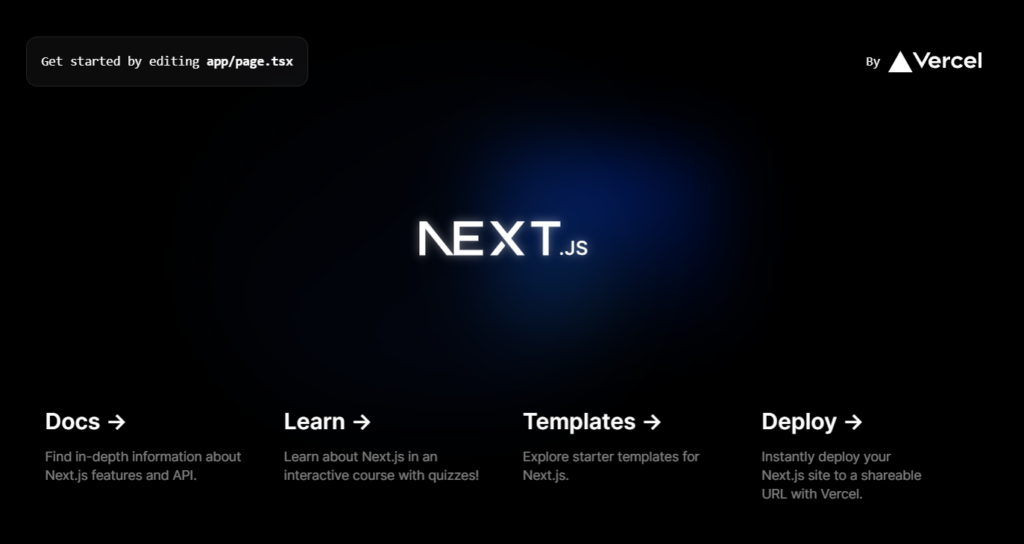
http://localhost:3000/ にアクセスし、Tailwind CSSのクラスがpage.tsxに適用されていることを確認する。
// page.tsx

import Image from "next/image";

export default function Home() {
  return (
    <main className="flex min-h-screen flex-col items-center justify-between p-24">
      <div className="z-10 w-full max-w-5xl items-center justify-between font-mono text-sm lg:flex">
      ...
      </div>

      <div className="relative z-[-1] flex place-items-center before:absolute before:h-[300px] before:w-full before:-translate-x-1/2 before:rounded-full before:bg-gradient-radial before:from-white before:to-transparent before:blur-2xl before:content-[''] after:absolute after:-z-20 after:h-[180px] after:w-full after:translate-x-1/3 after:bg-gradient-conic after:from-sky-200 after:via-blue-200 after:blur-2xl after:content-[''] before:dark:bg-gradient-to-br before:dark:from-transparent before:dark:to-blue-700 before:dark:opacity-10 after:dark:from-sky-900 after:dark:via-[#0141ff] after:dark:opacity-40 sm:before:w-[480px] sm:after:w-[240px] before:lg:h-[360px]">
      ...
      </div>

      <div className="mb-32 grid text-center lg:mb-0 lg:w-full lg:max-w-5xl lg:grid-cols-4 lg:text-left">
      ...
      </div>
    </main>
  );
}
※上記コードの水色部分がTailwind CSSのクラス