
本記事では、ESLintをインストールし、Visual Studio Code (VS Code)に統合する方法を説明する。
インストールするバージョンは、ESLint v9.1.1 (2024/05/02時点で最新)
ESLintとは?
ESLintはJavaScript用のLinter。
問題の発見と修復に役立つツールで、コードをより一貫性があるものにし、潜在的なバグの回避が可能になる。
インストール環境
- Windows 11 Home 23H2
- Node.js v20.12.2 (18.18.0, 20.9.0, もしくは21.1.0以上が要件)
- Visual Studio Code 1.88
インストール方法
ESLint (v9.1.1)
手順1. インストール
対話形式のコマンドで、インストール~設定ファイル作成まで実行する。
質問に用途に応じた回答をしていけば良い。
> npm init @eslint/config@latest

? How would you like to use ESLint? ...  // ESLintの用途は?
  To check syntax only  // 構文チェックのみ
> To check syntax and find problems  // 構文チェックと問題の検知
? What type of modules does your project use? ...  // プロジェクトで使用するモジュールタイプは?
> JavaScript modules (import/export)
  CommonJS (require/exports)
  None of these
? Which framework does your project use? ...  // プロジェクトで使用するフレームワークは?
  React
  Vue.js
> None of these
? Does your project use TypeScript? ...  // プロジェクトでTypeScriptを使用するか?
> No
  Yes
? Where does your code run? ...  (Press <space> to select, <a> to toggle all, <i> to invert selection) // コードをどこで実行するか?
> Browser
  Node
The config that you've selected requires the following dependencies:

globals, @eslint/js, eslint
? Would you like to install them now? » No / Yes  // 今ESLintをインストールするか?
? Which package manager do you want to use? ...   // パッケージマネージャはどれを使用するか?
> npm
  yarn
  pnpm
  bun
手順2. 設定ファイルを確認
手順1の回答に応じた設定ファイル(eslint.config.mjs)が作成されるので内容を確認する。
コードをブラウザで実行するようにしたのでその為の設定と、推奨設定が適用されている。
なお、推奨設定は公式サイトのルールで緑チェックがついているもの(recommendedになっているもの) (だと思う、たぶん)
// eslint.config.mjs
import globals from "globals";
import pluginJs from "@eslint/js";

export default [
  {languageOptions: { globals: globals.browser }},  // ブラウザ用設定
  pluginJs.configs.recommended,  // 推奨設定
];
手順3. 動作確認
以下のコマンドでESLintの実行が確認できるので試してみる。
>npx eslint <ファイル|ディレクトリ>以下のようなファイルを作成して、
// index.js
let array = ["i","n","o","w","e",,"b"]
ESLintを実行する。
> npx eslint index.js

C:\workspace\wordpress-article\eslint-practice\index.js
  1:5   error  'array' is assigned a value but never used  no-unused-vars  // arrayが未使用
  1:13  error  Unexpected comma in middle of array         no-sparse-arrays  // array内に空要素あり

✖ 2 problems (2 errors, 0 warnings)
ここからは、VS CodeにESLintを統合し、その機能をVS Codeから使用する方法について記述する。
VS Code Extension (ESLint)
手順1. VS CodeでExtensionビューを開く(Ctrl+Shift+X)
手順2. “ESLint”を検索し、[インストール]

VS Code Extension (ESLint)の主な使用方法
自動Linting
ESLint設定しているプロジェクトのファイルをVS Codeで編集すると、ESLintが自動実行されるようになる。
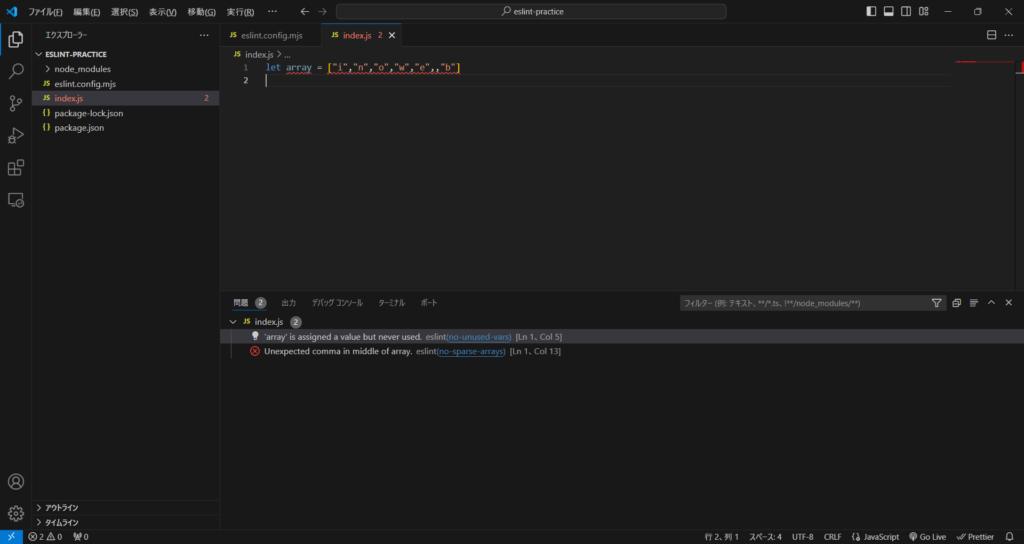
問題を自動FIX
問題の内容次第では以下の手順でFIXすることができる。
コマンドパレット(Ctrl+Shift+P) -> Fix all auto-fixable problems
FIXできる問題は公式サイトのルールでスパナアイコンがついているもの(fixableになっているもの) (だと思う、たぶん)